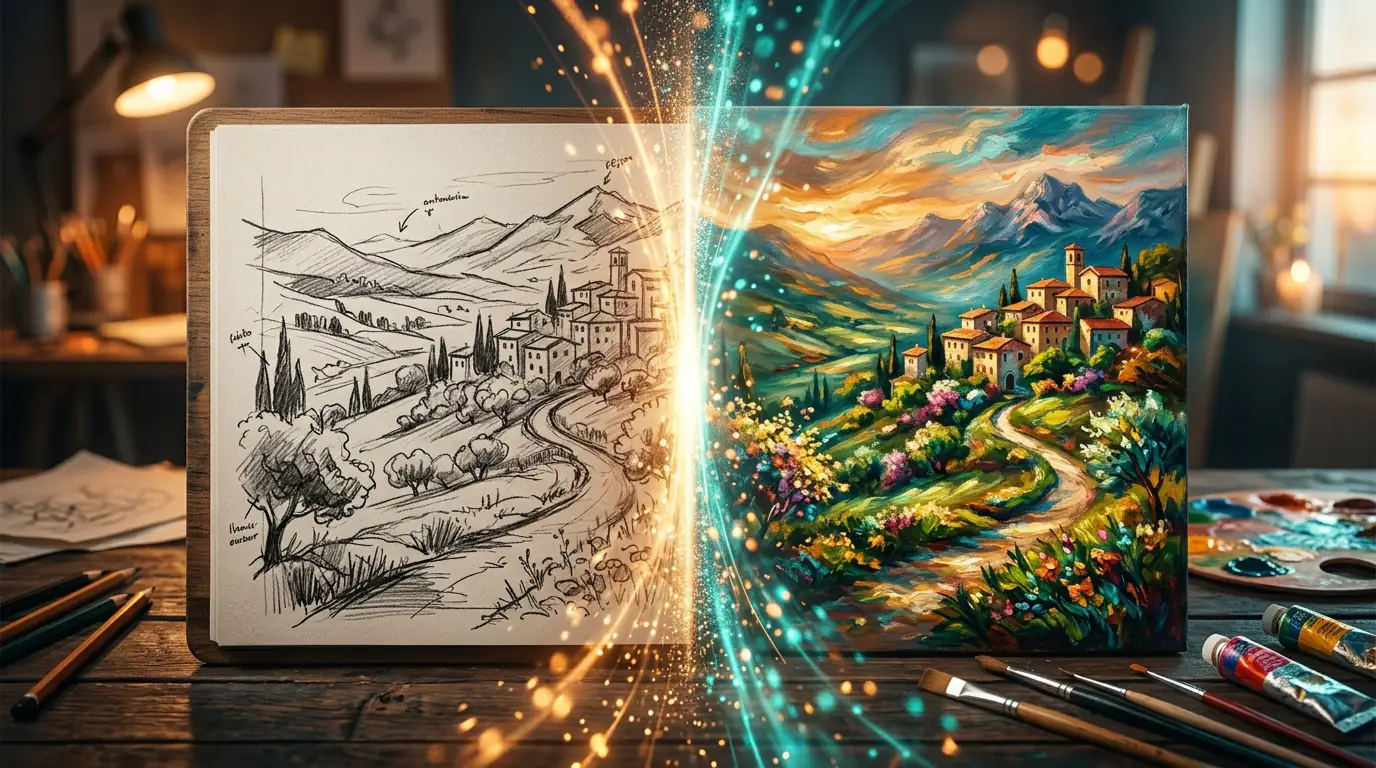
Transform & Restyle Photos
with AI Image-to-Image
Upload any photo and use text prompts to modify, enhance, or reimagine it. AI-powered image transformation made simple.
Change the Style. Keep the Subject.
Upload any photo and describe the changes you want. The AI preserves the composition and structure while reimagining colors, textures, lighting, and artistic style. Whether you need to restyle a portrait, enhance a product shot, or transform a landscape into a painting, image-to-image generation delivers professional results in seconds — no Photoshop skills required. Simply adjust the transformation strength to control how much the AI modifies your original.
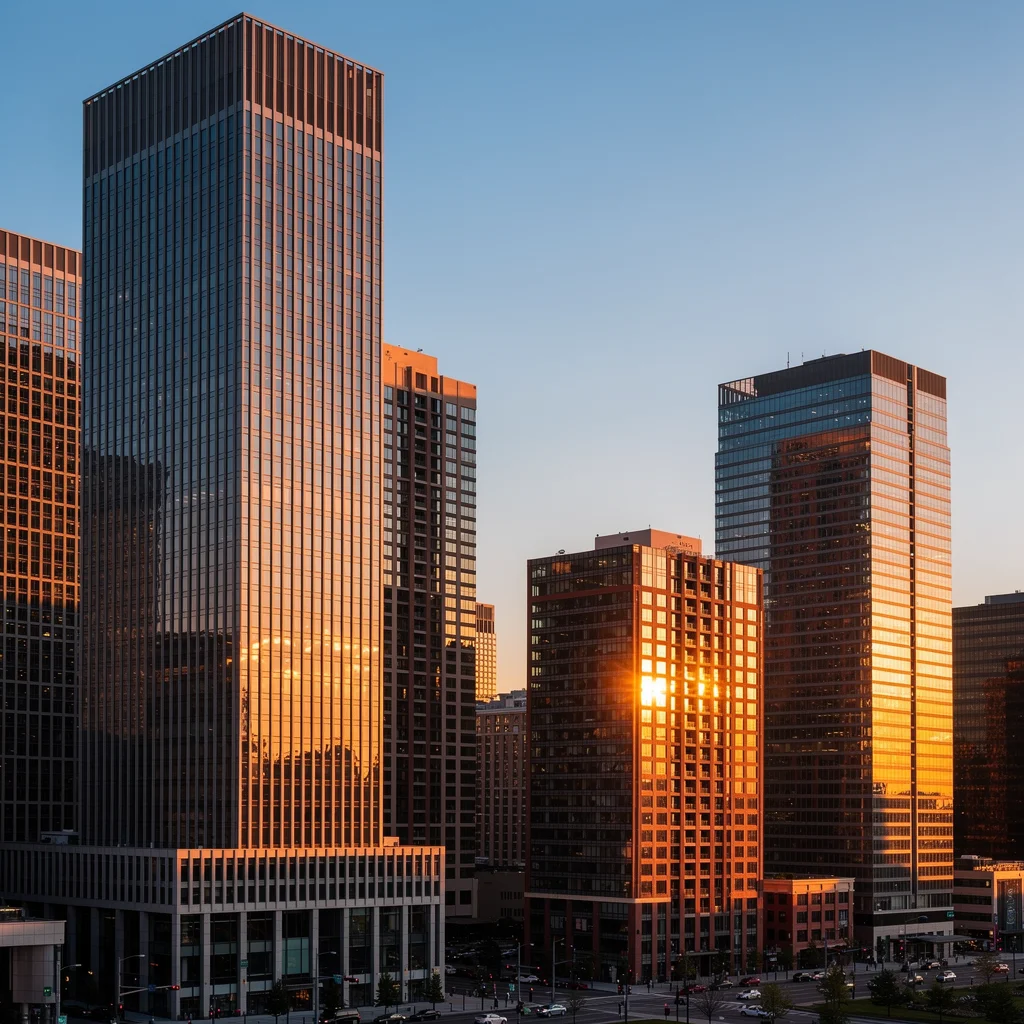
Original Photo
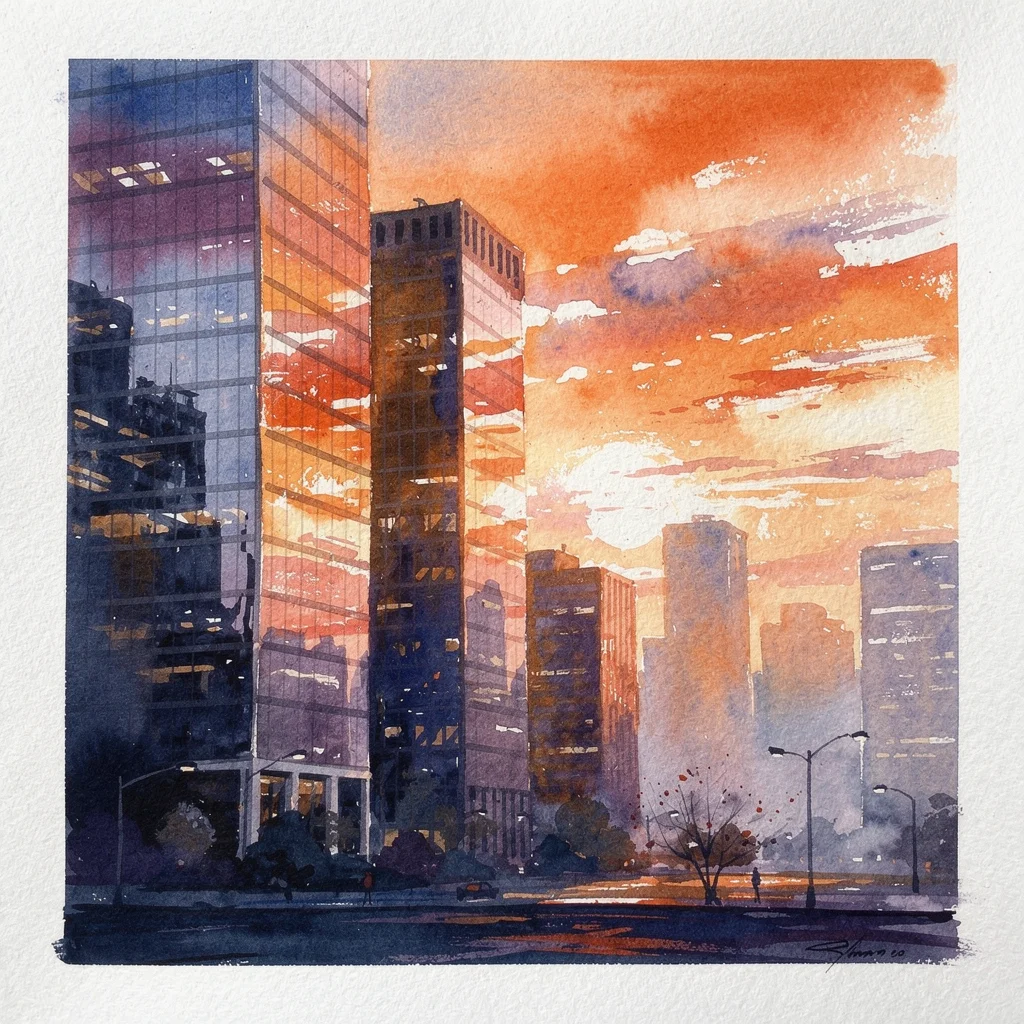
AI Transformed
What Is AI Image to Image Generation?
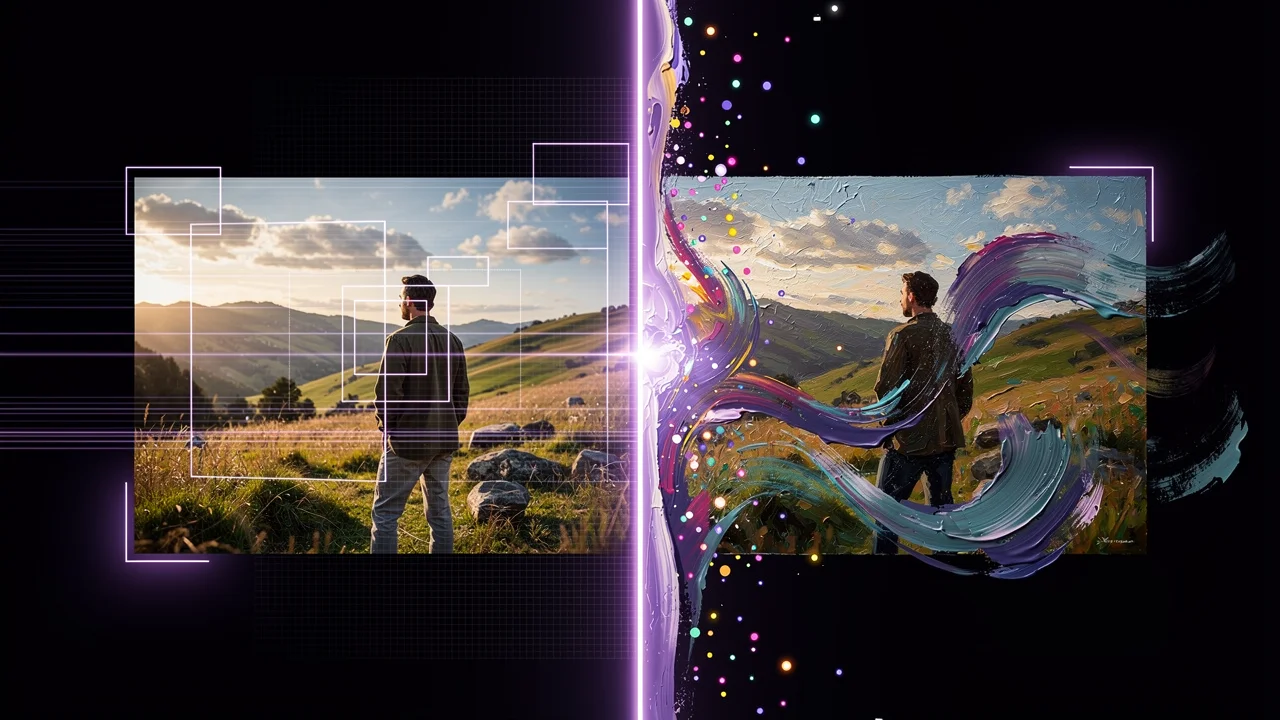
Image to image AI transforms existing pictures using text prompts while keeping the original structure intact. Unlike text-to-image generation which starts from scratch, image-to-image works with your existing photo as a foundation. The AI analyzes the composition, subjects, colors, and layout of your source image, then applies your requested changes while preserving what matters most. This technology powers everything from quick style transfers to detailed photo retouching. Advanced models like FLUX.2 Pro and GPT-4o Image can understand complex instructions such as "make the sky more dramatic" or "convert to watercolor style" while maintaining the integrity of faces, text, and other critical elements. The denoising strength parameter gives you precise control over how much the AI changes — low values keep the result close to the original, while high values allow more dramatic transformations. This makes image-to-image ideal for iterative creative workflows where you want to explore variations without losing the essence of your source material.
How to Use Our AI Image to Image Generator
Transform any image in three simple steps — no Photoshop or design skills needed.
1. Upload Your Image
Select any photo from your device — a portrait, product shot, landscape, sketch, or screenshot. The AI works with all common image formats and resolutions. For best results, use a clear, well-lit source image where the subject is easily distinguishable from the background.
2. Describe the Changes
Write a text prompt telling the AI exactly what to transform. You can change the artistic style, modify the background, adjust lighting and colors, add or remove elements, or completely reimagine the image while keeping the core composition. The more specific your instructions, the more predictable and refined the result.
4. Adjust Settings and Generate
Fine-tune the transformation strength slider to control how much the AI changes your original image. Low values keep the result close to the source, while high values allow more dramatic transformations. Choose your preferred AI model and click generate. Each generation takes just seconds, so experiment freely.
3. Download Your Result
Review the AI-generated transformation and download the image in high resolution. Every output comes with full commercial rights — use it for marketing materials, social media posts, client deliverables, or personal projects. Generate multiple variations to explore different creative directions from the same source image.
Image to Image AI Features
Zero Hardware Requirements
Run the same image through multiple AI models and compare results side by side. FLUX.2 Pro excels at photorealistic edits, GPT-4o Image handles complex creative instructions, and Ideogram V3 is perfect for images with text. Find the perfect result without committing to a single model upfront.
Unlimited Variations
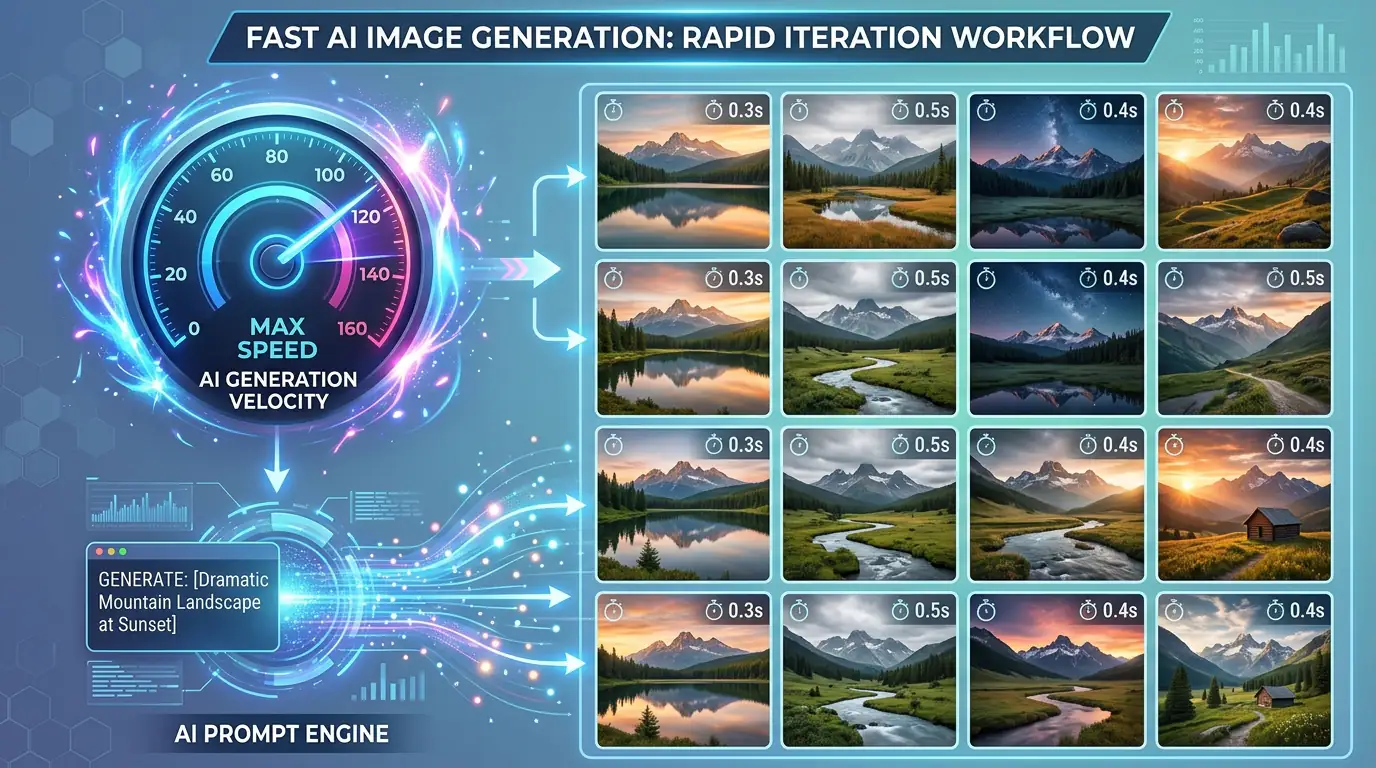
Need many variations of the same concept? Generate unlimited creative iterations from a single source image. Perfect for A/B testing ad creatives, exploring different color palettes, or producing a series of artwork with consistent composition but varied styles. Each generation takes just seconds.
sec avg
resolution
Instant Style Transfer
Not just style — modify specific elements within your image using natural language. Add a sunset, change the season from summer to winter, replace the background entirely, or remove unwanted objects. The AI understands context and makes changes that look natural and coherent with the rest of the scene.
HD Export, No Watermark
Download your transformed images in high resolution, ready for print, web, or social media. No watermarks, no quality loss — every output is a production-ready file you can use immediately across all your channels and projects.
Explore Different Art Styles
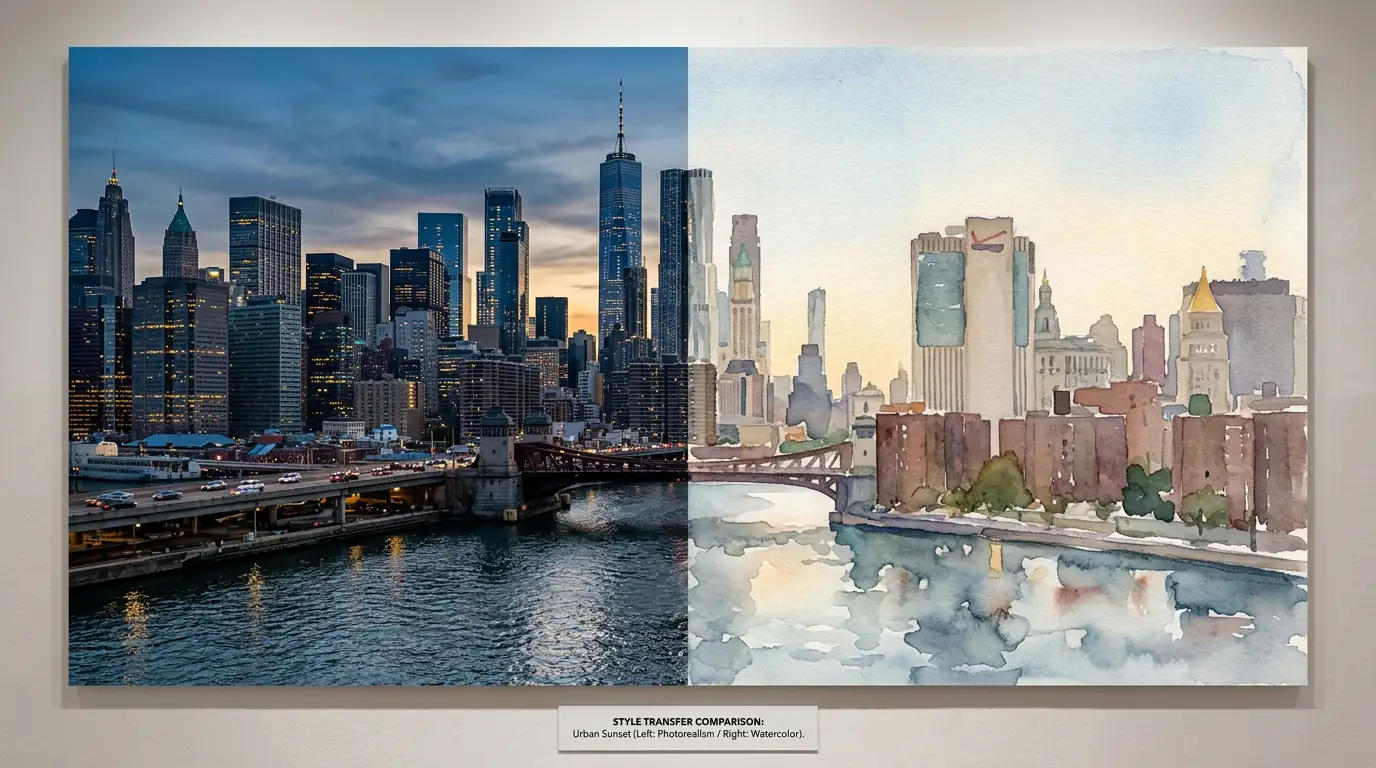
Transform the same image into entirely different visual styles. Each style preserves your composition while applying a distinct artistic treatment.
Photorealistic
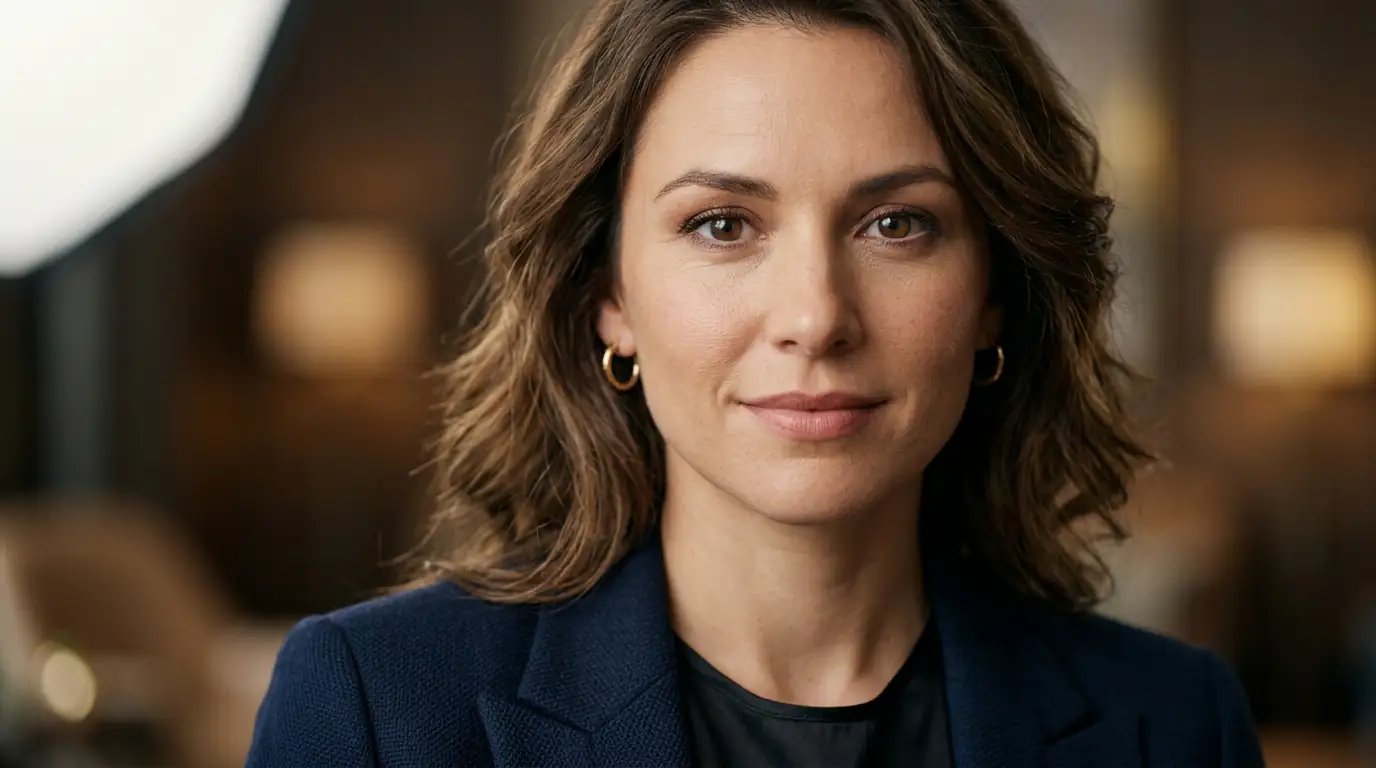
Enhance and refine photos while maintaining a natural, lifelike appearance. Perfect for professional headshots, product photos, and architectural shots that need subtle improvements.
Anime & Manga
Transform portraits and scenes into vibrant anime-style illustrations with clean linework, expressive eyes, and bold color palettes inspired by Japanese animation.
Oil Painting
Convert any image into a rich oil painting with visible brushstrokes, textured layers, and the depth and warmth characteristic of classical art masterpieces.
Watercolor
Achieve soft, ethereal transformations with delicate color bleeds, visible paper texture, and the gentle transparency that defines watercolor artwork.
3D Render
Give flat images a polished 3D appearance with smooth shading, realistic lighting, and the clean geometry of modern CGI and product visualization.
Pixel Art
Retro-style transformation that reduces images to carefully placed pixels with limited color palettes — perfect for game assets, nostalgic designs, and digital collectibles.
Professional Image Transformation Models
Each model has unique strengths for image-to-image transformation. Some excel at style transfer, others at photorealistic editing. Pick the right one or let Auto mode choose for you.
Best for photorealistic style transfer and precise edits with high fidelity.
Excels at creative transformations and understanding complex prompt instructions.
Fast and lightweight — ideal for quick style previews and batch processing.
Great for artistic reimagination with strong creative interpretation capabilities.
Real-World Image to Image Applications
One tool, dozens of real applications. Here are the image to image use cases people run most.
Turn Portraits into Studio Art
Convert standard portraits into stunning works of art. Transform headshots into Renaissance paintings, editorial fashion photography, anime characters, or pop art portraits. Perfect for social media avatars, album covers, and personalized gifts that stand out from the crowd.
Redesign Product Photos
Refresh your entire product catalog without expensive reshoots. Change backgrounds, adjust lighting, swap seasonal contexts, or create lifestyle scenes from simple white-background product photos. E-commerce teams save thousands on photography costs while maintaining consistent, professional visuals across all listings.
Test Ad Creative Variations
Generate multiple ad creative variations from a single base image. Test different color schemes, layouts, and visual styles to find the highest-performing design. Marketing teams can produce dozens of on-brand variations in minutes instead of waiting days for a designer to manually create each one.
Visualize Interior Spaces
Show clients photorealistic design variations without rendering each one from scratch. Transform a basic 3D render into a furnished room, change wall colors and materials, or convert daylight scenes to evening ambiance. Interior designers and architects use image-to-image to present options faster and close deals sooner.
Render Concept Art from Sketches
Turn rough sketches and concept drawings into polished, presentation-ready artwork. Upload a pencil sketch and watch the AI transform it into a fully rendered illustration with color, lighting, and texture — perfect for designers, illustrators, and creative teams who need to visualize ideas fast.
Modernize Old Photos
Breathe new life into vintage or damaged photographs. Restore faded colors, sharpen blurry details, and even reimagine old family portraits in modern artistic styles while preserving the character and emotion of the original moment.
Tips for Writing Effective Image to Image Prompts
The right prompt makes all the difference. Follow these tips to get better results from image-to-image AI.
Describe the Transformation, Not the Result
Instead of "make it look better," write "transform into a watercolor painting with soft pastel tones, visible paper texture, and gentle color bleeds at the edges." The AI responds to specific visual instructions, not vague preferences.
Specify What to Keep and What to Change
Explicitly mention elements you want preserved: "keep the subject's face and pose unchanged, maintain the original composition, but change the background to a sunset beach scene." This helps the AI understand your priorities.
Use Style References for Consistency
Name specific art styles, artists, or movements: "in the style of Studio Ghibli animation" or "Renaissance oil painting with chiaroscuro lighting." References give the AI a clear visual vocabulary to work with.
Iterate with Adjusted Strength
Don't try to get the perfect result in one shot. Start with a moderate strength (0.5), review the output, then refine. Use the result as input for another round with different settings. Each iteration gives you more control over the final look.
Best Practices for Image to Image
Master image-to-image transformation with these professional techniques and workflow strategies.
Choose the Right Denoising Strength
Denoising strength is the most important parameter in image-to-image generation. Low values (0.2-0.4) preserve the original composition closely, making only subtle style changes. Medium values (0.5-0.7) allow significant transformation while maintaining the overall structure. High values (0.8-1.0) nearly reimagine the image from scratch. Start at 0.5 and adjust based on how much change you want.
Match Source Image Quality
The quality of your source image directly impacts the output. Use high-resolution, well-lit source images with clear subjects for the best results. Blurry, low-quality, or heavily compressed source images will produce degraded outputs regardless of how good your prompt is. If your source image is low quality, consider upscaling it first before applying image-to-image transformation.
Use Detailed Transformation Prompts
Describe the transformation you want, not just the target style. Instead of 'make it look like Van Gogh,' try 'transform into Van Gogh's post-impressionist style with thick impasto brushstrokes, vibrant swirling colors, and dynamic composition while preserving the subject and overall scene layout.' The more specific your transformation instructions, the more control you have over the result.
Preserve Important Elements Explicitly
When certain elements of the source image must be preserved, mention them explicitly in your prompt: 'keep the subject's face unchanged, maintain the original composition, preserve the text in the sign.' This signals the model to allocate more attention to those areas and reduces unwanted changes to critical elements.
Experiment with Multiple Iterations
Image-to-image transformation often benefits from multiple rounds. Apply a subtle style change first, then use that result as input for additional refinement. This incremental approach gives you more control than trying to achieve everything in a single transformation. Each iteration builds on the previous one while maintaining quality.
Consider Aspect Ratio and Cropping
Your source image's aspect ratio influences the output composition. If you need a different aspect ratio, consider cropping the source image first to match your desired output proportions. This helps the model better understand your compositional intent and reduces wasted space or unwanted stretching in the final result.
Image to Image AI vs Manual Editing
Photoshop takes hours to learn and longer to master. Kairval's image to image tool takes 30 seconds, and produces results you couldn't achieve manually without years of practice. No version files to manage, no complex layer operations.
1 Image Input
$0 to Start
< 30s Generation
Image to Image vs Text to Image
Understand when to use each approach for the best creative results.
| Feature | Image to Image | Text to Image |
|---|---|---|
| Uses existing photo as base | ✓ | ✗ |
| Preserves original composition | ✓ | ✗ |
| Fine control over transformation strength | ✓ | ✗ |
| Creates images from text descriptions | ✗ | ✓ |
| Multiple AI models available | ✓ | ✓ |
| Best for style transfer & editing | ✓ | ✗ |
Explore More AI Tools
Discover related AI tools and models
FLUX.2 Pro
Professional-grade image generation with multi-reference editing and 4MP output.
Ideogram V3
Industry-leading text rendering and typography in generated images.
Recraft V4 Pro
Production-ready images with brand color control and SVG output.
Text to Image Generator
Generate stunning images from text descriptions with top AI models.
Frequently Asked Questions
Ready to Create?
Join millions of creators. Start generating stunning AI content today.
Get Started Free