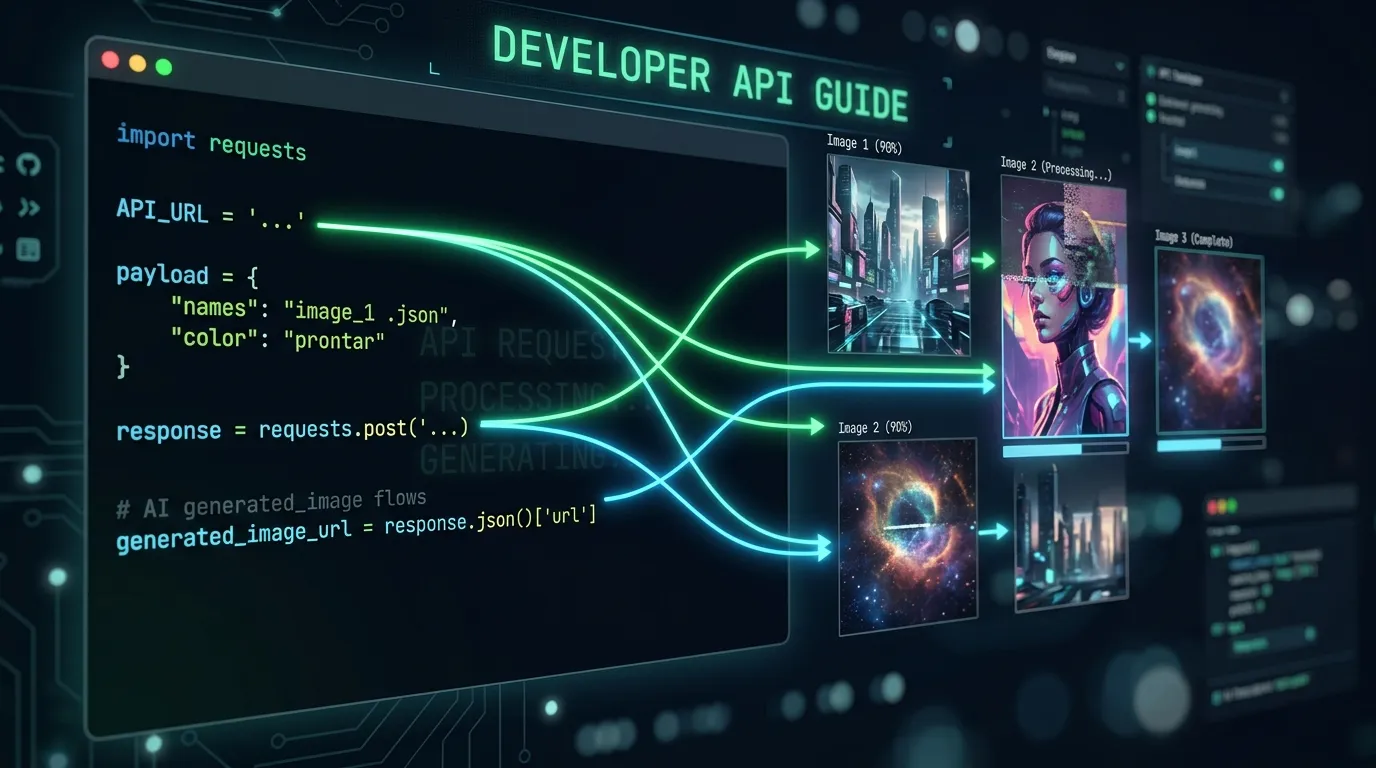
If you're building an e-commerce site that needs product photos on demand, or a marketing platform that generates ad variants at scale, GPT Image 2 gives you a single integration point. It produces photorealistic output, renders text accurately in images, and follows detailed prompts with consistent results.
This guide covers everything developers need to integrate GPT Image 2 through the Kairval API, including authentication, request formats, code examples, and production best practices.
API Overview
The Kairval API provides a unified interface for accessing GPT Image 2 and other AI image generation models. Key capabilities:
- Text-to-image generation: Create images from text descriptions
- Image-to-image editing: Transform existing images with text prompts
- Multiple output formats: PNG, JPG, WebP
- Various aspect ratios: 1:1, 16:9, 9:16, 4:3, 3:4
- Batch generation: Generate multiple images in a single request
- Asynchronous processing: Submit jobs and retrieve results via webhook or polling
Authentication
All API requests require authentication via an API key:
- Sign up for a Kairval account at kairval.com
- Generate an API key from your dashboard settings
- Include the key in the
Authorizationheader of every request
Authorization: Bearer kv_your_api_key_hereKeep your API key secure. Never expose it in client-side code or public repositories. Use environment variables or a secrets manager in production.
Text-to-Image Generation
Endpoint
POST https://api.kairval.com/v1/images/generateRequest Body
{
  "model": "gpt-image-2",
  "prompt": "A modern minimalist workspace with a laptop, coffee cup, and succulent plant on a white desk, soft natural lighting, editorial photography style",
  "aspect_ratio": "16:9",
  "output_format": "png",
  "negative_prompt": "blurry, watermark, low quality"
}
Request Parameters
| Parameter | Type | Required | Description |
|---|---|---|---|
model | string | Yes | Model identifier: "gpt-image-2" |
prompt | string | Yes | Text description of the desired image |
aspect_ratio | string | No | Output ratio: 1:1, 16:9, 9:16, 4:3, 3:4 (default: 1:1) |
output_format | string | No | png, jpg, webp (default: png) |
negative_prompt | string | No | Elements to exclude from generation |
n | integer | No | Number of images to generate (1-4, default: 1) |
seed | integer | No | Seed for reproducible generation |
Response
{
  "id": "gen_abc123",
  "model": "gpt-image-2",
  "created": 1714713600,
  "data": [
    {
      "url": "https://storage.kairval.com/generated/abc123.png",
      "revised_prompt": "A clean modern workspace..."
    }
  ]
}
The response includes a generation ID, the model used, timestamps, and an array of generated images. Each image includes a temporary URL and the revised prompt (what the model actually used after processing your input).
Code Examples
Python:
import requests
import os

API_KEY = os.environ.get("KAIRVAL_API_KEY")
API_URL = "https://api.kairval.com/v1/images/generate"

headers = {
    "Authorization": f"Bearer {API_KEY}",
    "Content-Type": "application/json"
}

payload = {
    "model": "gpt-image-2",
    "prompt": "A modern office lobby with glass walls, indoor plants, and warm lighting",
    "aspect_ratio": "16:9",
    "output_format": "webp",
    "negative_prompt": "blurry, distorted, low quality"
}

response = requests.post(API_URL, json=payload, headers=headers)
result = response.json()

for image in result["data"]:
    print(f"Image URL: {image['url']}")
TypeScript:
const response = await fetch("https://api.kairval.com/v1/images/generate", {
  method: "POST",
  headers: {
    "Authorization": `Bearer ${process.env.KAIRVAL_API_KEY}`,
    "Content-Type": "application/json",
  },
  body: JSON.stringify({
    model: "gpt-image-2",
    prompt: "A modern office lobby with glass walls, indoor plants, and warm lighting",
    aspect_ratio: "16:9",
    output_format: "webp",
    negative_prompt: "blurry, distorted, low quality",
  }),
});

const result = await response.json();

for (const image of result.data) {
  console.log(`Image URL: ${image.url}`);
}
cURL:
curl -X POST https://api.kairval.com/v1/images/generate \
  -H "Authorization: Bearer $KAIRVAL_API_KEY" \
  -H "Content-Type: application/json" \
  -d '{
    "model": "gpt-image-2",
    "prompt": "A modern office lobby with glass walls, indoor plants, and warm lighting",
    "aspect_ratio": "16:9",
    "output_format": "webp"
  }'
Image-to-Image Editing
GPT Image 2 also supports editing existing images via the API. Upload a source image and provide editing instructions.
Endpoint
POST https://api.kairval.com/v1/images/editRequest Body
{
  "model": "gpt-image-2",
  "prompt": "Change the background to a tropical beach at sunset",
  "image": "https://example.com/photo.jpg",
  "strength": 0.7,
  "output_format": "png"
}
Additional Parameters
| Parameter | Type | Required | Description |
|---|---|---|---|
image | string | Yes | Source image URL or Base64-encoded data |
strength | float | No | Transformation strength 0.0-1.0 (default: 0.8) |
prompt | string | Yes | Editing instructions |
The strength parameter controls how much the model transforms the source image. A value of 0.3 makes subtle changes (lighting adjustments, color grading) while 0.9 allows dramatic transformations (complete style changes, major element additions).
Pricing
GPT Image 2 API pricing on Kairval is credit-based:
| Plan | Credits | Cost per Credit | GPT Image 2 Cost |
|---|---|---|---|
| Free | 50 | — | Included |
| Starter | 1,000 | $0.02 | ~50 credits/image |
| Pro | 5,000 | $0.015 | ~50 credits/image |
| Enterprise | Custom | Volume pricing | Negotiated |
Credit costs per image may vary based on resolution, aspect ratio, and whether image-to-image mode is used. Higher resolutions and larger aspect ratios consume more credits.
Visit the pricing page for current rates and volume discounts. Enterprise customers can contact the Kairval team for custom pricing and SLA arrangements.
Rate Limits
| Plan | Requests/minute | Concurrent Jobs | Daily Limit |
|---|---|---|---|
| Free | 5 | 2 | 50 |
| Starter | 30 | 5 | 1,000 |
| Pro | 120 | 20 | 10,000 |
| Enterprise | Custom | Custom | Custom |
Rate limit information is included in every API response header:
X-RateLimit-Limit: 30
X-RateLimit-Remaining: 27
X-RateLimit-Reset: 1714714200
Error Handling
The API uses standard HTTP status codes:
| Code | Meaning | Action |
|---|---|---|
| 200 | Success | Parse response normally |
| 400 | Bad Request | Check request parameters |
| 401 | Unauthorized | Verify API key |
| 429 | Rate Limited | Implement exponential backoff, retry after Retry-After header |
| 500 | Server Error | Retry with backoff |
Error response format:
{
  "error": {
    "code": "rate_limit_exceeded",
    "message": "Rate limit exceeded. Retry after 60 seconds.",
    "type": "rate_limit_error"
  }
}
Always implement retry logic with exponential backoff for production applications. GPT Image 2 generation can occasionally take longer than expected under high load.
Production Best Practices
Prompt Engineering for APIs
When generating images programmatically, your prompts need to be even more precise than interactive use because there's no human in the loop to evaluate and adjust:
- Use template strings: Create prompt templates with variable placeholders for subject, style, and settings
- Validate inputs: Sanitize user-provided prompt text before sending to the API
- Set quality defaults: Always include quality keywords and negative prompts in your base template
- Log prompts and results: Track which prompts produce the best outputs for your use case
Image Storage
Generated image URLs from the API are temporary. For production use:
- Download immediately: Fetch the image from the returned URL within the TTL window
- Store in your own infrastructure: Upload to your CDN, S3 bucket, or image service
- Cache aggressively: Store generated images with a content hash for deduplication
- Implement cleanup: Remove unused generated images to control storage costs
Async Processing
For high-volume applications, use the asynchronous API:
- Submit a generation job
- Receive a job ID immediately
- Poll for completion or register a webhook callback
- Retrieve results when the job completes
This prevents HTTP timeout issues for complex or batch generations and allows your application to handle other work while waiting.
Cost Optimization
- Use WebP format for web applications: smaller file sizes with minimal quality loss
- Generate at the minimum required resolution: don't request 4K if you only need 1080p
- Cache repeated generations: if multiple users request similar images, serve from cache
- Batch where possible: use the
nparameter to generate multiple variations in one request - Monitor usage: set up alerts for unusual credit consumption patterns
Available Models
GPT Image 2 is one of many models available through the Kairval API. Other options include:
- GPT-4o Image: faster generation, suited for simpler use cases
- Imagen 3: Google DeepMind's photorealistic model
- FLUX.2 Pro: advanced control with multi-reference editing
- Ideogram V3: strong text-in-image rendering
- Recraft V4 Pro: SVG output and brand color control
All models use the same API structure. Switch between them by changing the model parameter in your request body.
Get Started
The fastest path to a working integration:
- Sign up for Kairval and generate an API key from your dashboard
- Copy a code example from above into your project and set the
KAIRVAL_API_KEYenvironment variable - Review pricing to pick a credit package that matches your expected volume
- Add retry logic and image storage before shipping to production
If you want to see what the model can produce before writing code, the GPT Image 2 model page has a live playground and a gallery of example outputs with the prompts that generated them.

![Gemini vs ChatGPT: Which AI Is Better? [2026]](/kairval/images/blog/00ede4e2-92de-421e-b378-ac6d2ba8fa05.webp "Gemini vs ChatGPT: Which AI Is Better? [2026]")