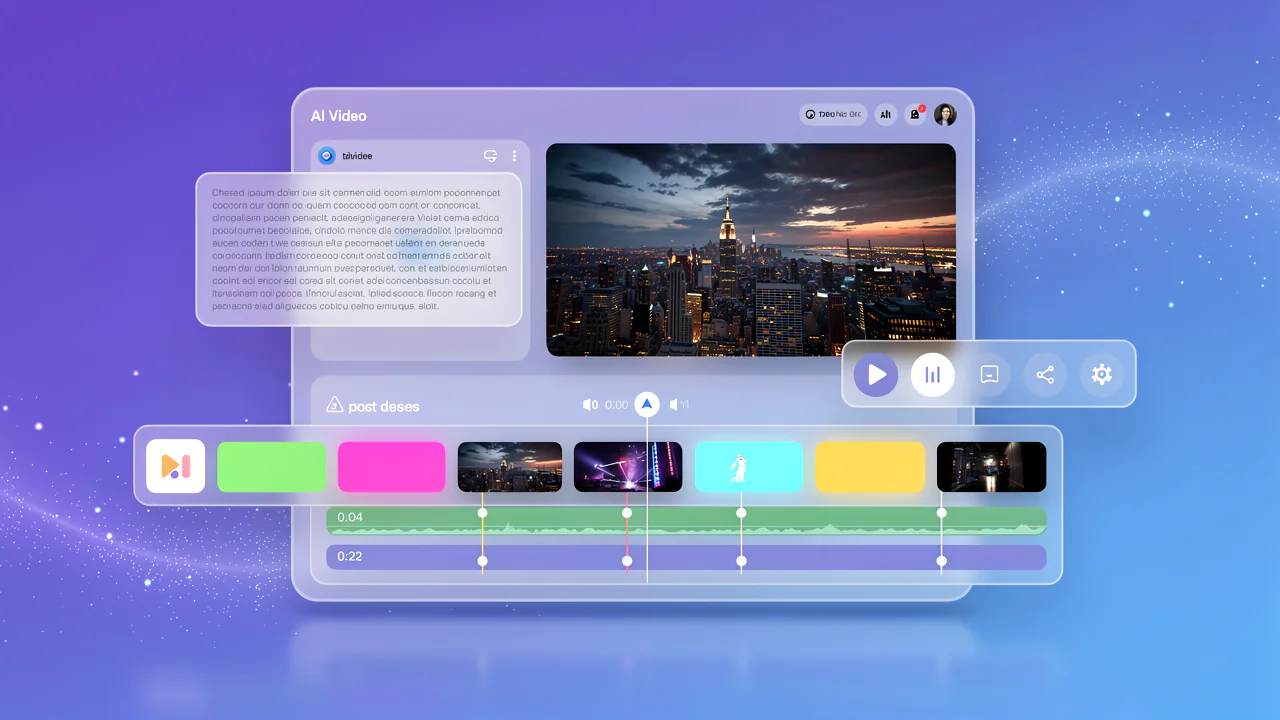
Seedance 2.0 is ByteDance's most advanced AI video generation model, capable of turning text descriptions, images, audio clips, and video references into high-quality video content up to 15 seconds long. Unlike many AI video tools that only accept text input, Seedance 2.0 lets you combine up to 12 reference files simultaneously, giving you precise control over camera movement, character appearance, scene composition, and even synchronized audio.
This tutorial covers everything you need to start generating videos with Seedance 2.0 on Kairval, from your first text-to-video creation to advanced multimodal techniques with image, video, and audio references.
Getting Started
Before you begin, here's what you need to know about accessing Seedance 2.0:
No sign-up required for first use: You can try Seedance 2.0 immediately on Kairval without creating an account. Your first few video generations are free.
Credit-based system: After your free credits are used, Seedance 2.0 operates on Kairval's credit system. Credits are shared across all models, so you can switch between Seedance 2.0, Kling 3.0 Pro, Veo 3.1, and other video models without managing separate subscriptions. Check the pricing page for current rates.
Three generation modes: The model supports text-to-video (create from scratch), image-to-video (animate a still image), and video-to-video (transform existing footage). All three are accessible through the Kairval text-to-video and image-to-video tools.
What is Seedance 2.0?
Seedance 2.0 is a multimodal AI video generation model developed by ByteDance's Seed research team. It was first released in early 2026 and quickly gained attention for its ability to generate videos with synchronized audio, a feature that most competing models lacked at launch. According to analysis by The Decoder, Seedance 2.0 became one of the top three most-used AI video models within weeks of its release, driven largely by its multimodal input system and native audio capabilities.
The model supports five core input types:
- Text-to-video: Write a description and the model generates a video from scratch
- Image-to-video: Upload a still image and animate it with motion and camera movement
- Video-to-video: Upload an existing video and transform it with new actions, styles, or characters
- Audio-to-video: Upload an audio clip to guide the video's sound design and pacing
- Multimodal references: Combine up to 12 files (images, videos, audio) with text prompts for precise control
Compared to its predecessor, Seedance 2.0 introduced three major upgrades: native audio co-generation (the model creates sound effects and ambient audio that match the visuals), director-level camera control (you can specify dolly shots, pans, tracking, and zoom using natural language), and improved character consistency (upload a reference image and the model maintains that character's appearance across multiple scenes). In blind comparison tests run by Artificial Analysis, Seedance 2.0 scored among the top AI video models for prompt adherence and visual coherence, often outperforming models with higher per-frame resolution.
For a full breakdown of the model's technical specifications, visit the Seedance 2.0 model page.
Key Features of Seedance 2.0
Multimodal Input System
Seedance 2.0 accepts up to 12 reference files in a single generation. You can mix images, video clips, and audio files together, each tagged with a specific purpose in your prompt. Upload a character photo for appearance, a video clip for camera movement, and a music track for audio mood, and the model combines all three into a coherent output. According to Seedance's official documentation on BytePlus, this multimodal approach produces results that are significantly more controlled than text-only generation.
Native Audio Co-generation
The model generates synchronized audio alongside the video automatically. This includes ambient sounds, sound effects, and music that match the visual content. You can also upload an audio reference to guide the sound design. For example, provide a specific music track or voice recording for the model to match. This feature was highlighted in Forbes' coverage of AI video trends as one of the key differentiators separating next-generation video models from earlier tools.
Director-level Camera Control
Seedance 2.0 understands cinematography terminology. You can specify camera movements like "slow dolly in," "tracking shot from left to right," "aerial pan," and " handheld shaky cam" directly in your text prompt. The model translates these directions into realistic camera motion in the generated video.
Character Consistency
One of the most useful features for multi-shot projects. Upload a character reference image and the model preserves that character's facial features, clothing, and proportions across all generated scenes. This makes it possible to create short films and narrative content where the same character appears consistently from different angles and in different settings.
Video Extension and Fusion
Need a video longer than 15 seconds? Seedance 2.0 supports video extension: upload your generated video as a reference and prompt the model to continue the scene for additional seconds. This works well for narrative content where you need a character to walk through a space, transition between actions, or build atmospheric sequences. The model maintains visual consistency between the original and extended segments, so there's no jarring jump between clips.
The model also supports video fusion, combining multiple clips into a smooth sequence with transitions. This is useful when you want to create parallel storylines or quick-cut montage sequences. You can specify transition types in your prompt: "smooth crossfade," "hard cut," or "match cut on movement," and the model adjusts the transition timing accordingly.
For character replacement, upload an existing video and a new character reference image. The model replaces the character in the original footage while preserving the original actions, camera movements, and background. This opens up creative possibilities like recasting scenes or creating alternate versions of the same video with different characters.
How to Use Seedance 2.0: Step-by-Step Tutorial
Step 1: Open the Tool
Navigate to the text-to-video tool on Kairval. The interface shows a text input area, model selector, reference upload zone, and generation settings.
Step 2: Select Seedance 2.0
From the model dropdown, select Seedance 2.0. You'll see other video models available too, including Kling 3.0 Pro, Veo 3.1, and Wan 2.5. For this tutorial, choose Seedance 2.0.
Step 3: Choose Your Input Mode
Seedance 2.0 supports three creation modes:
- Text-to-video: Best for creating videos from pure imagination. Just write a description.
- Image-to-video: Best for animating existing images. Upload a photo and describe the motion.
- Video-to-video: Best for transforming footage. Upload a video and describe the changes.
If you're new to the model, start with text-to-video: it's the simplest way to learn how Seedance 2.0 interprets prompts.
Step 4: Upload References (Optional)
If you chose image-to-video or video-to-video mode, upload your reference files. You can add:
- Images: Character appearance, scene reference, style reference, product photos
- Videos: Camera movement reference, action reference, transition reference
- Audio: Music tracks, sound effects, voice recordings
Drag and drop files into the reference upload area. Each file gets a tag like @Image 1 or @Video 1 that you can reference in your prompt.
Step 5: Write Your Prompt
Describe the video you want to generate. A good Seedance 2.0 prompt includes four elements:
- Subject: Who or what is in the scene?
- Action: What is happening?
- Setting: Where does it take place?
- Camera: How should the camera move?
Example prompt for a beginner:
A woman walking through a misty forest at dawn, wearing a long dark coat. Camera slowly tracks alongside her from the right. Soft golden light filtering through tall pine trees. Ambient forest sounds with birdsong.
Example for an image-to-video workflow:
Using @Image 1 for the character's appearance. The woman turns to face the camera and smiles warmly. Camera slowly zooms in to a medium close-up. Warm afternoon lighting, gentle breeze moving her hair.
For more detailed prompt techniques, see the Prompt Tips section below.
Step 6: Configure Settings
Adjust these settings before generating:
- Duration: Choose between 5 and 15 seconds. Shorter durations generally produce higher quality per frame.
- Resolution: Select your output resolution (up to 1080p).
- Aspect ratio: Choose based on your intended use:
- 16:9 for YouTube, website videos, presentations
- 9:16 for TikTok, Instagram Reels, mobile content
- 1:1 for Instagram posts, social media squares
Step 7: Generate and Review
Click the generate button and wait for your result. Video generation typically takes 30-90 seconds depending on complexity, duration, and server load.
When the video appears, evaluate it against your expectations:
- Does the motion match what you described?
- Is the camera movement correct?
- Are character details consistent with your references?
- Does the audio complement the visuals?
If the result isn't quite right, refine your prompt and try again. Professional AI video creators typically generate 3-5 versions before selecting a final cut. According to a 2026 survey by Runway, creators who iterate at least 3 times report 62% higher satisfaction with their final output compared to those who accept the first generation.
Prompt Tips for Seedance 2.0
Writing effective prompts is the single most important skill for getting good results from Seedance 2.0. Here's a structured approach.
The Four-Part Prompt Structure
Every Seedance 2.0 prompt should cover these four elements in order:
Subject + Action + Setting + Camera
This structure ensures the model has enough information to generate a coherent video.
Ready-to-Use Prompt Templates
Template 1: Basic video generation:
A [subject] [action] in [setting].
Camera: [camera movement].
Lighting: [lighting description].
Audio: [sound description].
Duration: [X] seconds.
Template 2: Character consistency with references:
Using @Image 1 for character appearance.
[Character name] [action] in [setting].
Camera slowly [camera movement].
Maintain exact appearance from reference image.
Mood: [emotional tone].
Audio: [ambient sound description].
Template 3: Product advertising video:
Using @Image 1 for product reference.
[Product name] placed on [surface], [surrounding scene].
Camera starts wide, then slowly pushes in to a close-up.
Lighting: bright studio quality, soft shadows.
Audio: subtle ambient music, no voice.
Duration: 10 seconds.
Image Reference Best Practices
- Use clear, well-lit photos as character references, since the model can't extract details from dark or blurry images
- Show the full body or face clearly, because partial crops limit the model's understanding
- One reference per purpose: separate character appearance from scene reference from style reference
- Tag each reference in your prompt by explicitly stating what each
@Imageshould be used for
Video Reference Best Practices
When using video clips as references, keep these guidelines in mind:
- Keep reference clips under 10 seconds, because longer clips may confuse the model about which part to reference
- Specify what you want from the reference. Writing "Use @Video 1 for camera movement only, not the scene content" prevents the model from copying elements you don't want
- Use high-contrast actions: if you want specific motion, choose a reference where that motion is clearly visible against a simple background
- Match the reference style to your goal, since a cinematic film clip reference produces different results than a smartphone-shot home video reference, even with the same text prompt
Audio Reference Techniques
Audio references are one of Seedance 2.0's most distinctive features. Here's how to use them effectively:
- Music tracks: Upload a song to set the mood and pacing of the video. The model synchronizes visual cuts and transitions to the musical beats
- Sound effects: Upload specific sounds (rain, traffic, crowd noise) and the model generates visuals that match
- Voice recordings: Upload spoken audio and the model can generate a character whose lip movements and expressions match the speech
In your prompt, describe how the audio should influence the visuals: "Match the energetic tempo of @Audio 1 with quick cuts and dynamic camera movements" or "Use @Audio 1 for ambient mood only, with slow gentle camera work."
Common Mistakes to Avoid
Skipping the camera description: Without camera direction, the model chooses randomly. Always specify at least one camera movement.
Overloading with actions: "The character runs, jumps, spins, dances, and then sits down" in a 10-second video will produce chaotic results. Focus on one or two clear actions per generation.
Ignoring audio direction: Even though Seedance 2.0 generates audio automatically, adding audio descriptions to your prompt gives you more control over the soundscape.
Using low-quality references: A pixelated or poorly lit reference image produces inconsistent results. Invest time in preparing clean reference materials.
Contradictory instructions: Telling the model "fast-paced action" while also requesting "slow, peaceful camera movement" creates confusion. Keep your prompt internally consistent, so the action, camera, and audio all support the same mood.
Seedance 2.0 vs Kling 3.0 vs Veo 3.1
If you're evaluating AI video models, here's how Seedance 2.0 compares to two popular alternatives available on Kairval:
| Feature | Seedance 2.0 | Kling 3.0 Pro | Veo 3.1 |
|---|---|---|---|
| Max duration | 15 seconds | 10 seconds | 8 seconds |
| Max resolution | 1080p | 1080p | 1080p |
| Native audio | Yes | No | Yes |
| Multimodal references | Up to 12 files | Limited | Limited |
| Character consistency | Strong | Moderate | Moderate |
| Camera control | Director-level | Basic | Basic |
| Video extension | Yes | No | No |
| Best for | Multi-reference projects, audio-visual content | Clean text-to-video generation | High-resolution output, Google ecosystem |
When to choose Seedance 2.0: Projects that need character consistency, audio synchronization, multiple reference inputs, or videos longer than 10 seconds. The best choice for AI filmmaking, advertising, and narrative content.
When to choose Kling 3.0 Pro: Quick text-to-video generation where visual quality matters more than audio or reference control. Good for social media clips and concept visualization. Visit the Kling 3.0 Pro model page to learn more.
When to choose Veo 3.1: Projects within the Google ecosystem, or when you need the highest per-frame visual fidelity in shorter clips. Both Veo 3.1 and Veo 3.1 Fast are available on Kairval.
You can compare all three models directly on Kairval. The text-to-video tool lets you switch between models without re-entering your prompt.
Use Cases for Seedance 2.0
AI Advertising and Product Videos
Upload a product photo and generate a polished video ad in seconds. The model handles camera angles, lighting, and background composition automatically. Add a music reference file to match your brand's audio identity.
For example, a skincare brand can upload a product bottle photo, write a prompt describing the product on a marble counter with soft morning light, and specify a slow dolly-in camera movement. The result is a 10-second product video with ambient spa sounds, ready for social media or a landing page. This workflow replaces an expensive product shoot with a process that takes under two minutes.
Social Media Content
Create scroll-stopping videos for TikTok, Instagram Reels, and YouTube Shorts. Use the 9:16 aspect ratio and keep videos under 10 seconds for maximum impact. The native audio generation means your content has sound from the start, with no post-production needed.
Content creators are using Seedance 2.0 to produce "faceless" content: videos that tell stories, demonstrate concepts, or showcase products without showing a real person. The character consistency feature lets you create a recurring animated character for your channel using a single reference image.
AI Filmmaking and Short Films
Seedance 2.0's character consistency and camera control make it viable for narrative content. Upload character reference sheets, plan your shots with specific camera directions, and use video extension to build sequences longer than 15 seconds. While it won't replace traditional filmmaking, it's a powerful tool for storyboarding, concept reels, and experimental short films.
The workflow for a short film typically looks like this: design your characters and upload reference sheets, write individual scene prompts with camera directions, generate each scene separately, and stitch them together using the video fusion feature. This approach gives you control over each shot while maintaining character consistency throughout.
Educational and Explainer Videos
Generate visual demonstrations of concepts that are difficult to film in real life. Describe scientific processes, historical events, or abstract ideas and let the model create supporting visuals. The audio co-generation adds narration-friendly ambient sound.
Teachers and course creators use Seedance 2.0 to produce visual aids for complex topics, like showing how tectonic plates move, visualizing historical battle formations, or demonstrating chemical reactions at a molecular level. The key is to focus each 10-15 second clip on a single concept, then combine clips for a complete explanation.
Limitations and Troubleshooting
Seedance 2.0 is a powerful tool, but it has current limitations worth knowing about:
15-second maximum per generation: The model generates up to 15 seconds at a time. For longer videos, use the extension workflow (generate a segment, upload it as a reference, and continue). This adds a few minutes to your workflow but produces smooth continuations.
Text rendering in videos: Complex text on signs, screens, or documents may render inaccurately. Keep on-screen text simple: single words and short phrases work best.
Character consistency across many scenes: While Seedance 2.0 maintains consistency well across 2-3 consecutive scenes, longer projects with 10+ scenes may show subtle drift. Using the exact same reference image and similar prompts for each scene minimizes this.
Common troubleshooting steps:
- Generation fails: Check that your prompt isn't excessively long (keep it under 500 words) and that reference files are in supported formats (JPG, PNG, WebP, MP4, WebM, MP3, WAV)
- Low visual quality: Increase the specificity of your prompt. Add details about lighting, materials, and composition. Upload additional reference images.
- Character doesn't match reference: Make sure you explicitly reference the uploaded image in your prompt using the
@Imagetag and describe the character's key features.
FAQ
The frequently asked questions for this guide are available in the expandable section at the top of the page. They cover common questions about how Seedance 2.0 works, where to access it, audio capabilities, pricing tiers, character consistency, supported file types, video duration, and comparisons with competing models.
Start Creating with Seedance 2.0
You now have everything you need to start using Seedance 2.0 effectively. Here's a quick recap:
- Seedance 2.0 generates videos up to 15 seconds from text, images, video, and audio references
- Multimodal input is the model's biggest advantage: combine up to 12 reference files for precise control
- Camera direction in your prompt matters, so always specify how the camera should move
- Audio is generated automatically but you can guide it with audio references and descriptions
- Video extension lets you build longer sequences: generate, then extend for multi-shot narratives
The AI video generation market is projected to reach $2.1 billion by 2027 according to Grand View Research, and models like Seedance 2.0 are at the forefront of this growth.
Head to the text-to-video tool and try Seedance 2.0 for yourself. Your first generations are free, with no account required.
Your first assignment: generate a 10-second cinematic video of a city at night using only a text prompt. Include a camera direction (try "slow aerial pan"), a lighting description, and an audio note. See how the model handles all three elements in a single generation.
What to Try Next
Once you're comfortable with Seedance 2.0 basics, explore these advanced workflows:
- Multi-character scenes: Upload separate reference images for two characters and prompt them to interact in the same scene
- Style consistency across a series: Use the same style reference image for every generation in a campaign to maintain a cohesive visual identity
- Audio-driven storytelling: Upload a narrative voice recording and let the model generate visuals that follow the spoken story beat by beat
- Iterative scene building: Generate a master shot, then use video-to-video with specific prompts to create close-ups, reaction shots, and alternate angles from the same base scene
- Cross-model comparison: Generate the same prompt with Seedance 2.0, Hailuo 02, and Wan 2.5 to see which model handles your specific use case best
For help with other AI tools on Kairval, check out our tutorial on how to use GPT Image 2 for image generation, or explore the full Seedance 2.0 model page for technical specifications and example outputs.

![Gemini vs ChatGPT: Which AI Is Better? [2026]](/kairval/images/blog/00ede4e2-92de-421e-b378-ac6d2ba8fa05.webp "Gemini vs ChatGPT: Which AI Is Better? [2026]")